From a little day to a finished book
Use your invitation and add your family
Open the link in your invitation email and sign in as a grown-up. Complete the parent setup, then add your child’s character. You can start with a name, age and description; face photos are optional.
Still waiting? Join the waiting list below. You can keep reading free stories while you wait for your invitation.
Describe a moment, or make one up
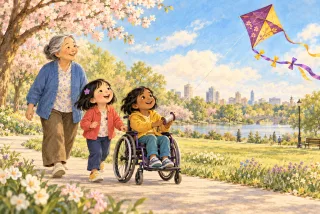
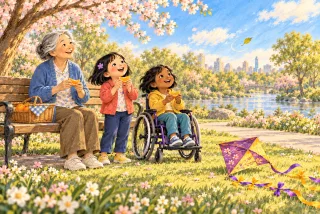
Choose Make a new story on your shelf. At What did we do?, write something simple: “We watched a kite in the park. The wind kept stopping.” A sentence or two is a useful starting point; it does not need to sound like a finished story.
You can add photos of the day or dream up a setting instead. Keep private information such as addresses and school names out of the description.
Review the story choices
For a first book, the app picks the remaining choices and takes you to Ready when you are. Review who stars in it, its look and the story details. Choose Change beside anything you want to adjust.
Later books walk you through the characters, optional lesson and art choices. A lesson is optional: an ordinary adventure is enough.
Choose Make it!
The app writes, illustrates and narrates the book. Making a new book takes a few minutes. You can leave the app and return to your shelf later.
The progress screen tells you when you can begin reading. Some later pages may still be finishing when the opening pages become available.
Review it, then read together
A grown-up should look through the words and pictures first. AI can make mistakes or produce something unexpected. Once you are happy with it, turn the pages together or play the read-aloud narration.
You can see the reading experience in the complete free example below. Its characters are fictional; it is not a customer’s private book.
Keep a favorite on your family shelf
Completed books stay available to read again. Reopening one does not use another new-book allowance. Sign in with the same account on another device to find your family’s shelf.
You can choose to share a read-only link or download a printable PDF. Your family’s books are not automatically published in the public library. Changes and new books have separate allowances; see current pricing and access.
Where do photos fit?
There are two optional uses. Add clear face photos to a person’s profile in Family to help with their illustrated character. Add photos of an outing in What did we do? to give a new story its starting point. Words alone work too.
Our photo storybook overview shows those options. If you want to arrange your own photos and captions by hand, use the separate six-picture family storybook recipe.
What should our first story be about?
Choose something small you can describe easily: a park visit, baking together, finding a shell, or building with blocks. For another starting point, try our adaptable story prompts.
For reading tonight, browse bedtime stories, big-sister and big-brother books, or a complete taking-turns adventure.
Ready to make one?
Already invited? Open your family’s web app. For an invitation-code problem or help returning to a shelf, visit getting-started help or contact us.